
Position Management
The portfolio occupies the right panel of the interface. It allows you to track open positions, calculate real PnL based on historical funding rate data, and keep a record of closed positions with realized PnL.
Portfolio Summary
The top of the panel displays:
| Indicator | Description |
|---|---|
| Value / Invested | Total current market value or entry investment across all positions |
| Active PnL | Aggregate PnL across all open positions (green = profit, red = loss) |
| Realized PnL | Total PnL from closed positions |
| Combined | Active + Realized PnL (shown when both exist) |
Header Actions
| Button | Description |
|---|---|
| ⛶ Expand | Opens Fullscreen Mode with detailed table and per-position charts |
| ↻ Refresh | Recalculates PnL for all positions from the backend (fetches fresh funding data) |
| PnL × | Clears all cached PnL data (requires confirmation) |
Position Cards
Each position is shown as a card with:
- Symbol — the ticker name (clickable — navigates to the chart)
- Exchanges — long exchange and short exchange
- Amount — investment size ($) or current market value with price delta (%)
- Token Quantity — number of tokens in the position
- Opening Cost — fees and slippage incurred when opening
- PnL — current profit or loss (clickable — opens fullscreen with the position expanded)
- Entry Date — when the position was opened
Each card provides edit and delete actions.
Adding a Position
From the Ticker Details Panel
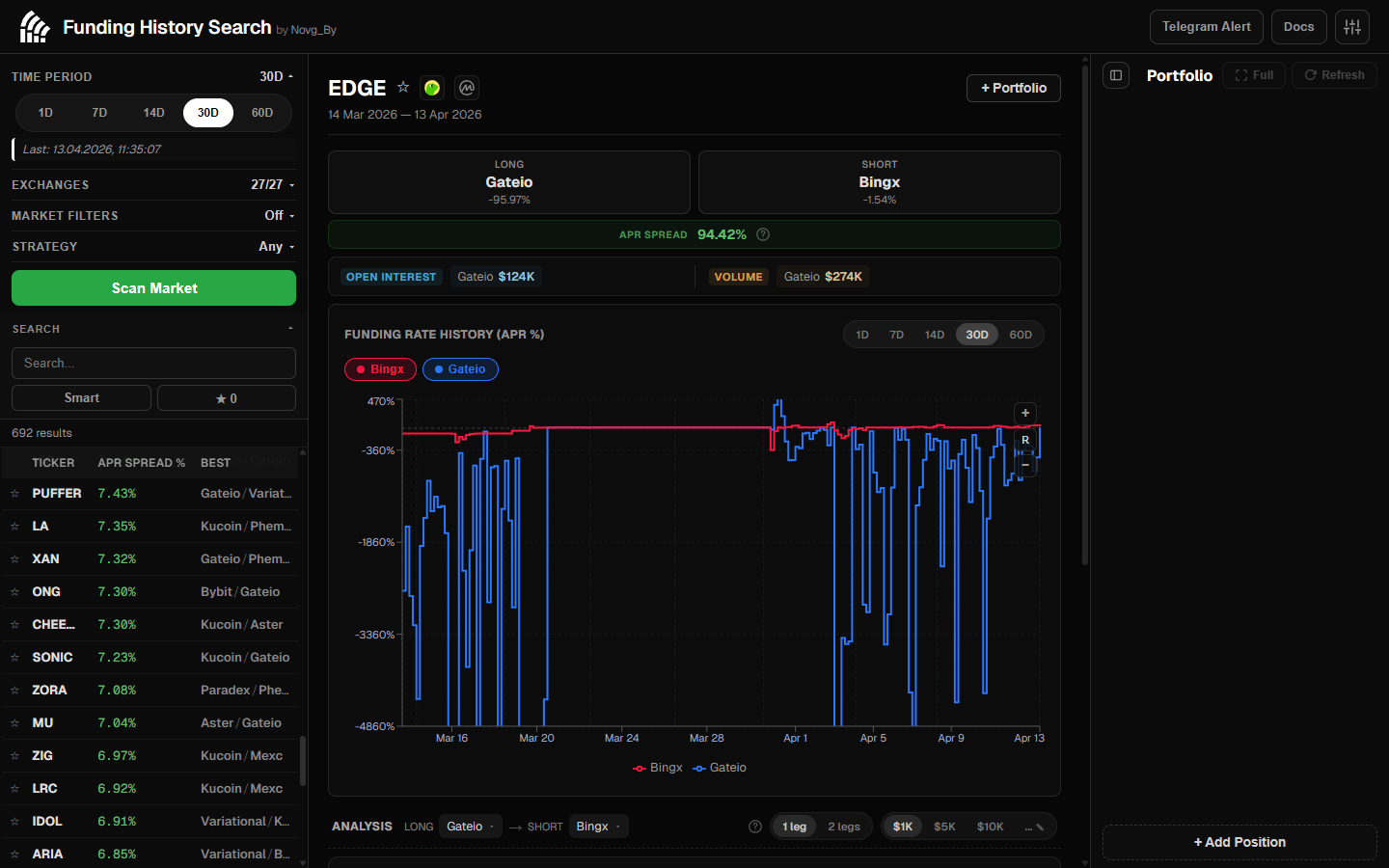
The fastest method — click + Portfolio in the Ticker Details view. The long and short exchanges will be pre-filled with the best pair from the current analysis.
Position Form Fields
| Field | Description |
|---|---|
| Symbol | Ticker name (read-only, set from the scan) |
| Long Exchange | Exchange for the long side (dropdown with all available exchanges) |
| Short Exchange | Exchange for the short side (dropdown with all available exchanges) |
| Amount ($) | Investment amount per leg in US dollars |
| Token Quantity | Number of tokens in the position |
| Price ($) | Current token price (auto-fetched from exchange APIs or CoinGecko) |
| Opening Cost ($) | Costs incurred when opening (trading fees, slippage on both exchanges) |
| Entry Date | Date the position was opened (max = today) |
Linked Fields: Amount and Token Quantity
The Amount and Token Quantity fields are linked. Change one and the other recalculates automatically using the current token price. The price is fetched from exchange APIs (Binance, Bybit, OKX, Gate.io, Bitget, KuCoin, Hyperliquid) with a CoinGecko fallback.
Exchange Validation
- The two exchange dropdowns are mutually exclusive — you cannot select the same exchange for both long and short
- In add mode: only exchanges available for the current ticker are shown
- In edit mode: all 27+ exchanges are accessible
Price Auto-Fetch
When you change the long or short exchange, the form automatically fetches the current token price:
- Tries exchange-specific APIs in parallel (the selected long + short exchanges)
- If both respond: averages the prices
- If one responds: uses that price
- If both fail: falls back to CoinGecko search
Editing a Position
Click the edit icon on any position card to open the form in edit mode. All fields are editable. Click Save to apply changes or Cancel to discard.
Token Quantity
When editing, changing the Amount or Tokens field will recalculate the other based on the current price, not the entry price. Double-check values before saving.
Updating PnL
Click the ↻ (refresh) button to recalculate PnL for all positions. The update process:
- Fetches funding rate history from the backend for each position (entry date → now)
- Calculates real PnL using Riemann sum integration of hourly funding rates
- Fetches current token prices from exchanges
- Updates the cache progressively (you see data appearing as each position completes)
Requests are spaced 800ms apart to respect rate limits. Failed requests retry up to 3 times.
For the full PnL formula, see Formulas & Calculations.
Opening Cost
The Opening Cost is subtracted from PnL. Make sure to account for trading fees on both exchanges and any slippage incurred when opening the position.
Closing a Position
When you delete a position:
- It moves to the Closed Positions section at the bottom of the portfolio
- The realized PnL at the time of closing is preserved
- The close date is recorded
Closed Positions Section
- Collapsible list of all previously closed positions
- Each entry shows: symbol, exchanges, realized PnL, close date
- Remove from history — delete an individual closed position
- Clear all history — remove all closed positions (requires confirmation)
Realized PnL from closed positions is shown separately in the portfolio summary and contributes to the Combined total.
Auto-Sync to Telegram
When Telegram notifications are configured, the portfolio automatically syncs to the notification service whenever positions change (with a 1.5-second debounce to batch rapid changes).